Home › How to use
How to use MotoBi
From installing the app to posting your first bike — with pictures of every screen.
Download and install
MotoBi is free on Google Play and runs on Android 6.0 and above. It is a small download, so it installs quickly even on a slow connection.
Open the Play Store
Find the Play Store icon on your phone and open it.
Search for MotoBi
Type MotoBi in the search box. Look for the app published by ThuliNexis Digital (Pvt) Ltd so you install the right one.
Tap Install
Wait for it to finish, then tap Open. You can also open it later from your home screen.
The Play Store link is a placeholder until the app is published.
Sign in with Google
MotoBi uses Google Sign-In, so there is no new password to create or remember. Almost everyone with a Play Store account already has a Google account, which makes signing in a single tap.
- Tap Continue with Google on the welcome screen
- Choose the Google account you want to use
- Enter your mobile number once, so buyers can call you
- Choose your district and your language
We never see or store your Google password. Your mobile number is shown to buyers on your listings, because a phone call is how most bikes get sold in Sri Lanka.
Find a bike near you
The home screen shows motorbikes for sale. Use the search box and the filters to narrow it down until you are only looking at bikes you would actually travel to see.
- Filter by brand, model, year, mileage and price
- Set your district so results are close to home
- Open a listing to see all the photos and full details
- Tap the phone number to call the seller directly
MotoBi does not take part in the sale and takes no commission. Everything is agreed between you and the seller — so read the Buyer Safety Tips before you go and see a bike.
Post your bike for sale
Tap the + button, fill in the details and add your photos. It takes about five minutes. Posting is free, and there is no commission when the bike sells.
- Choose the brand and model, then add year, mileage and condition
- Set your district and your asking price
- Add clear daylight photos of the actual bike
- Write an honest description and submit
Our team checks the listing — usually within 24 hours — and then it goes live. You will get a notification when it appears. You can edit it, mark it as sold or delete it any time from Profile → My Listings.
Photos that sell a bike
Buyers decide from the pictures. Take them in daylight, and include the whole bike from the front-side angle, the rear-side angle, the odometer, the engine, and any damage you know about. Honest photos of a scratch save you a wasted trip and a difficult conversation later.
Do not use photos taken from the internet or from another advertisement, and do not write your phone number inside the picture — listings that do are removed.
Find mechanic and spare parts shops
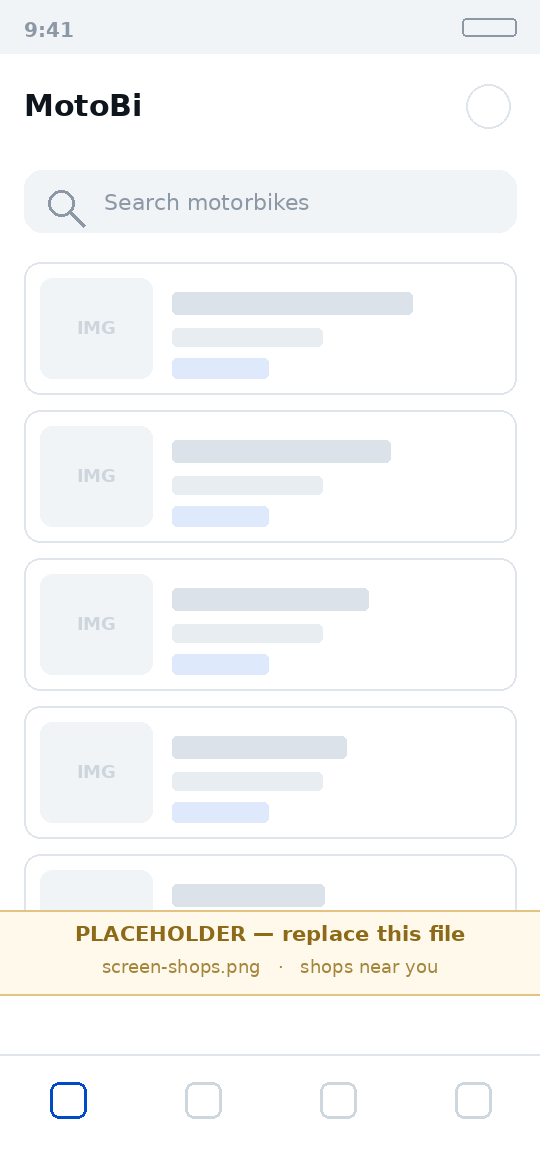
Open Near You to see mechanic shops and spare parts shops in your area, with their location and phone number. Every shop in the directory has been checked by our staff before it appears.
- Browse mechanic shops for repairs and servicing
- Browse spare parts shops when you need a part
- Call the shop straight from its page
- Report a shop if something is wrong
Register your shop
If you run a mechanic shop or a spare parts shop, you can add it to the directory free of charge so riders in your area can find you.
Open the form
Go to Profile → Register Shop and fill in your shop name, type, address, district and phone number.
Upload your documents
Business registration or trade licence, the front and back of the owner's National Identity Card, and a clear photo of the shop.
Wait for approval
Our staff check everything, usually within 2 to 5 working days. Once approved, your shop appears in the directory for your area.
What happens to your documents
Your National Identity Card images, trade licence and business registration are used only to confirm that the shop and its owner are real. They are stored privately, are never shown in the app or to other users, and are never published anywhere. Only our approval staff can see them. You can ask us to delete them at any time — see the Privacy Policy and the Delete Your Account page.
Report a listing, shop or advertisement
Open the listing, shop or advertisement in the app and tap Report. Pick a reason, add anything else we should know, and send it.
Reports go straight to our review team. Depending on what we find we may ask the seller to correct the listing, take it down, or suspend the account. When we remove a listing the seller is told the reason. Reports are confidential — we never tell the other person who reported them.
Nobody from MotoBi will ever ask you for money
We will never ask for your Google password, an OTP code, a bank transfer, a reload, or a fee to keep your listing active. If someone contacts you claiming to be from MotoBi and asks for any of these, it is a scam. Do not pay, and tell us at info@thulinexis.com. Our only email address is info@thulinexis.com.
If you have already lost money, report it to the Sri Lanka Police first — that is the only route to recovering it — and then email us the details so we can remove the account.
Still have a question?
The Help & Support page answers the questions we are asked most, and tells you exactly what to send us so we can reply quickly.